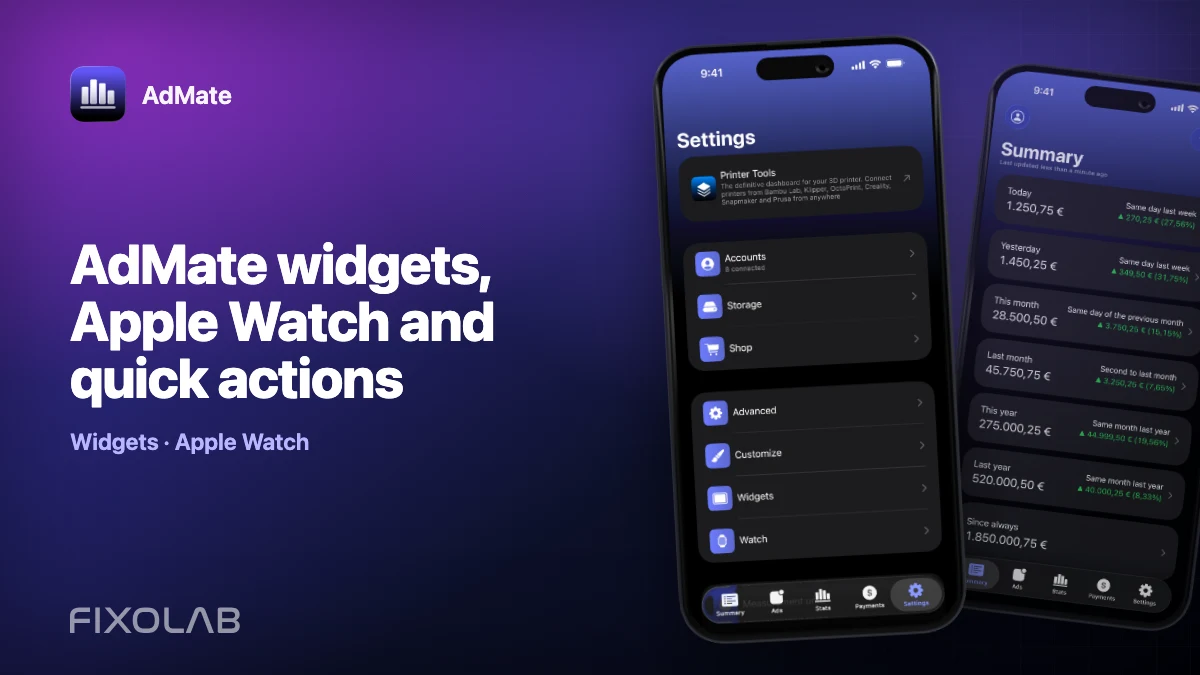
AdMate widgets, Apple Watch and quick actions
AdMate’s smaller surfaces are designed for speed: a widget can show a selected snapshot, Apple Watch can provide a glanceable summary and quick actions can open a service without navigating the full app. They work best when each surface has a clear purpose and the user understands that it may display cached data.
All your revenue in one dashboard
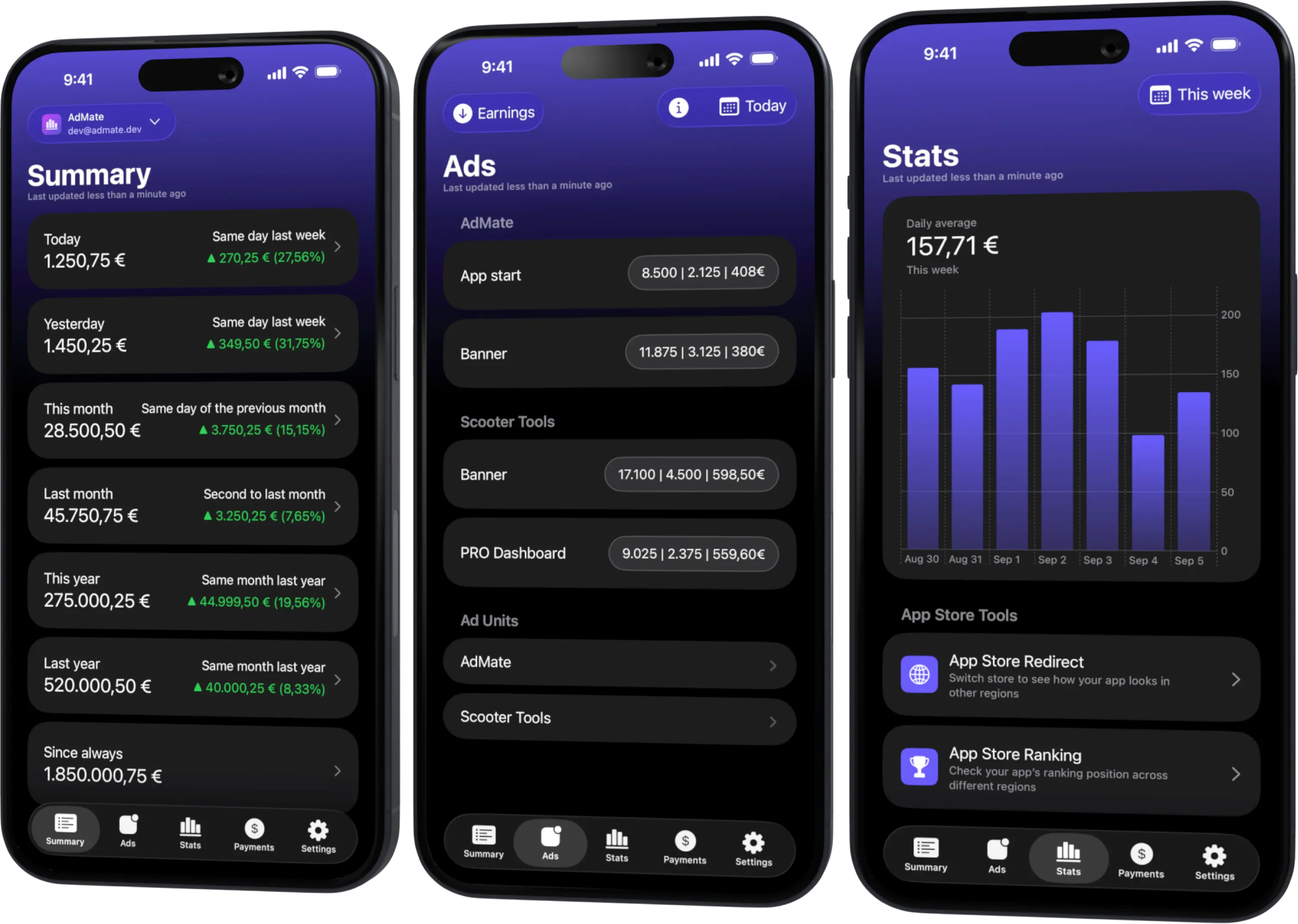
Track AdMob, AdSense, RevenueCat and App Store Connect across multiple accounts with filters by app, platform and country
Monitor revenue, clicks, eCPM, subscriptions, installs and payments on iPhone, iPad, Mac and Apple Watch
Choose a glanceable question
A small surface should answer one question, such as:
- What is the latest known summary for my primary account?
- Did today’s estimated advertising trend change?
- Which service should I open for investigation?
- What was the last synchronized watch value?
Do not try to reproduce a full multi-account reconciliation table on a complication.
Configure from the main app
Connect and validate provider accounts in AdMate first. Then select the supported data and account context for the widget or watch experience. The main app owns the richer account state and synchronizes compatible information through the shared app group and watch communication.
If an extension looks empty, confirm that the main app has loaded a valid account and snapshot before troubleshooting the extension itself.
Understand refresh timing
iOS, macOS and watchOS manage extension refresh opportunities. A widget is not guaranteed to update the instant a provider report changes.
For a material decision:
- tap or open the relevant surface;
- launch the main app;
- verify account and date range;
- refresh the provider;
- use the detailed view for the final reading.
Apple Watch behavior
The watch requests configuration and compatible statistics from the paired iPhone. Connectivity, app state and platform scheduling can affect freshness. Keep the iPhone account setup valid and allow synchronization before assuming data is missing.
The watch is ideal for a quick check, not for entering provider private keys or reviewing financial reports.
Quick actions and deep links
Quick actions reduce navigation by opening a supported destination such as a service summary or notification area. They do not bypass account authorization. If the target account was removed or access expired, the main app must resolve that state.
Privacy on visible surfaces
Widgets and complications can appear on a Lock Screen, desktop or watch face. Choose metrics appropriate for that visibility and consider who can see the device.
- Avoid client-sensitive totals on a shared screen.
- Use device authentication and notification privacy controls.
- Remove account data before transferring a device.
- Do not display credentials or provider identifiers.
Troubleshooting checklist
- Open and refresh the main app.
- Confirm the intended active account.
- Check that a valid snapshot exists.
- Verify iPhone–Watch connectivity for watch data.
- Allow the operating system time to refresh the extension.
- Re-add the widget only after confirming the source data is healthy.
For the caching model, read how offline snapshots work in AdMate.
Frequently asked questions
Are widgets real-time?
No. They update from snapshots on platform-managed schedules.
Can I connect an account from Apple Watch?
Provider configuration belongs in the main app. The watch consumes compatible synchronized data.
Why does a quick action open an empty view?
The destination may have no valid active account or the authorization may have expired. Check the main app.
Is it safe to put revenue on the Lock Screen?
Only if that visibility is acceptable for your account and environment. Treat business metrics as sensitive.
All your revenue in one dashboard
Track AdMob, AdSense, RevenueCat and App Store Connect across multiple accounts with filters by app, platform and country
Monitor revenue, clicks, eCPM, subscriptions, installs and payments on iPhone, iPad, Mac and Apple Watch
| FixoLab
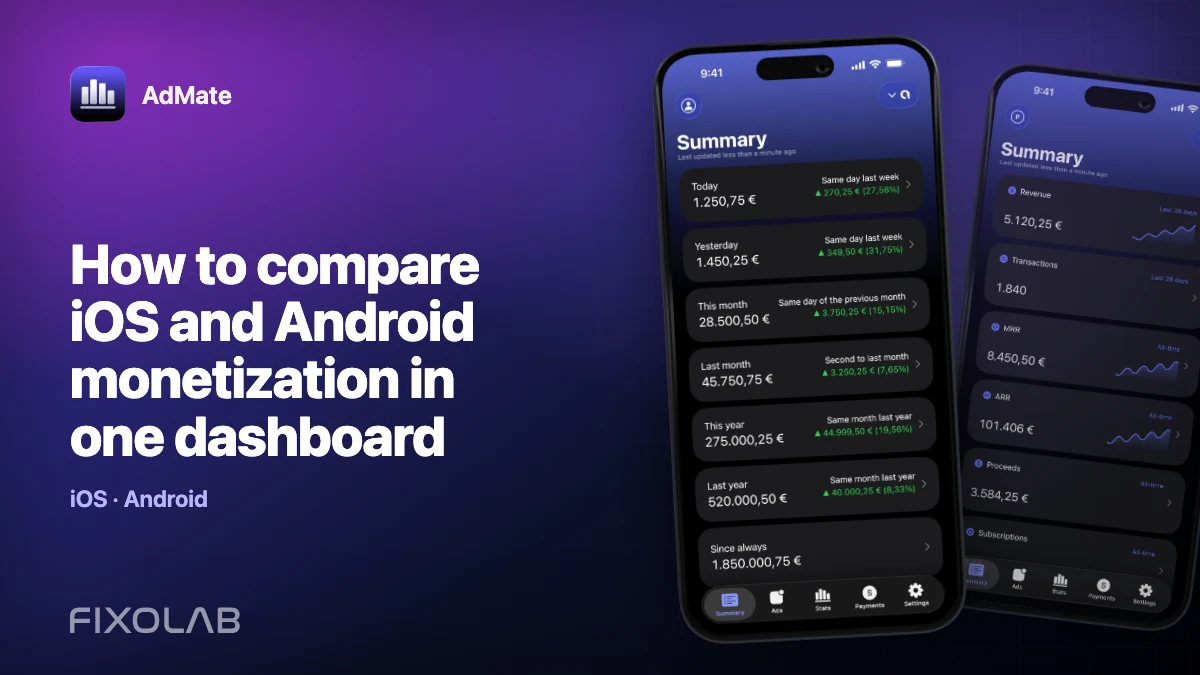
How to compare iOS and Android monetization in one dashboard
Compare iOS and Android advertising, subscription and store performance in AdMate without mixing incompatible metrics, currencies or overlapping transactions.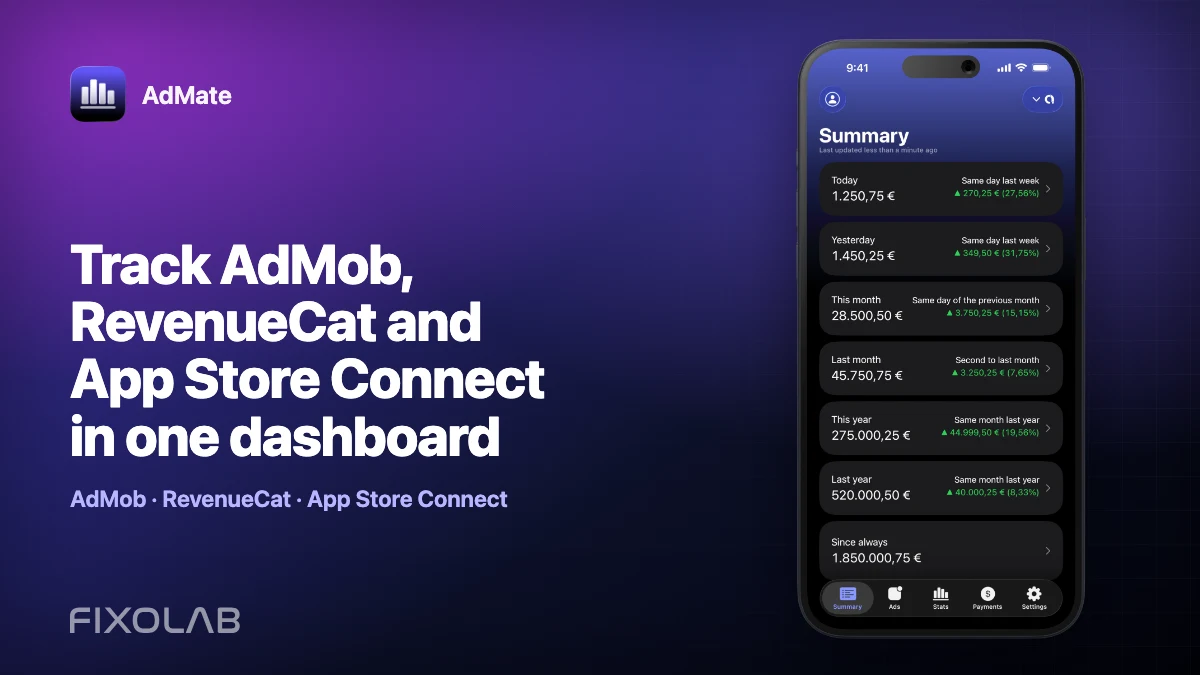
| FixoLab
Track AdMob, RevenueCat and App Store Connect in one dashboard
Use AdMate to review AdMob, AdSense, RevenueCat and App Store Connect across multiple accounts without sending revenue through an AdMate server.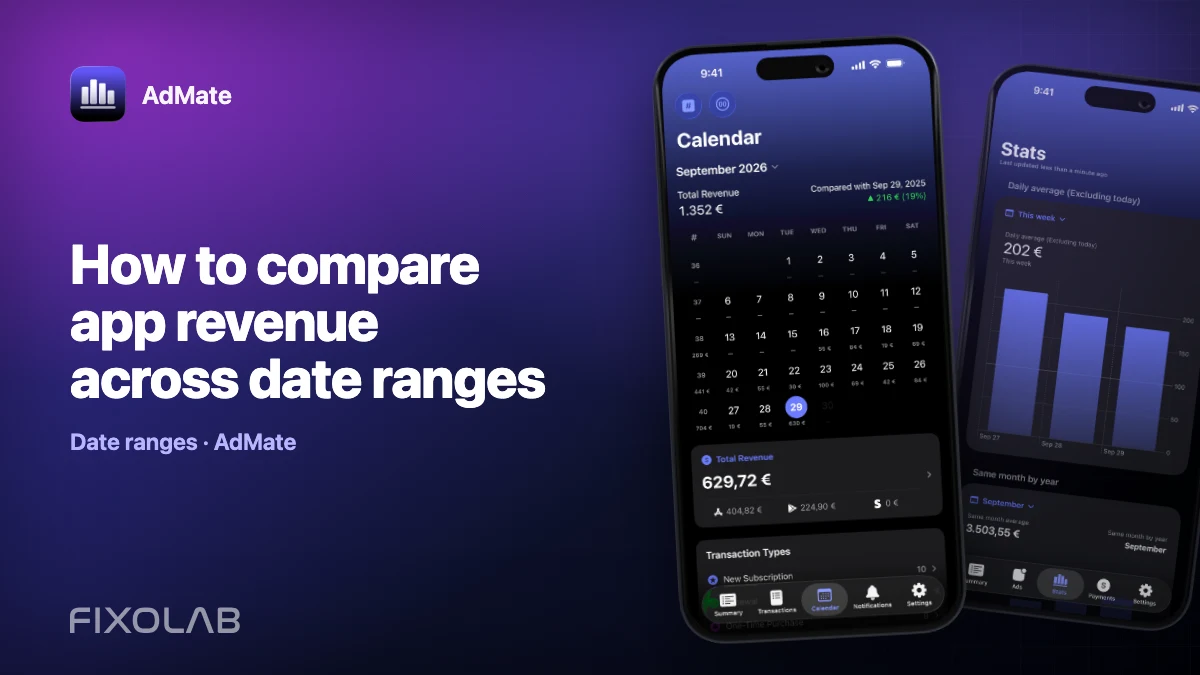
| FixoLab
How to compare app revenue across date ranges
Build fair daily, weekly and monthly revenue comparisons in AdMate by aligning duration, account scope, app filters, time zones and incomplete periods.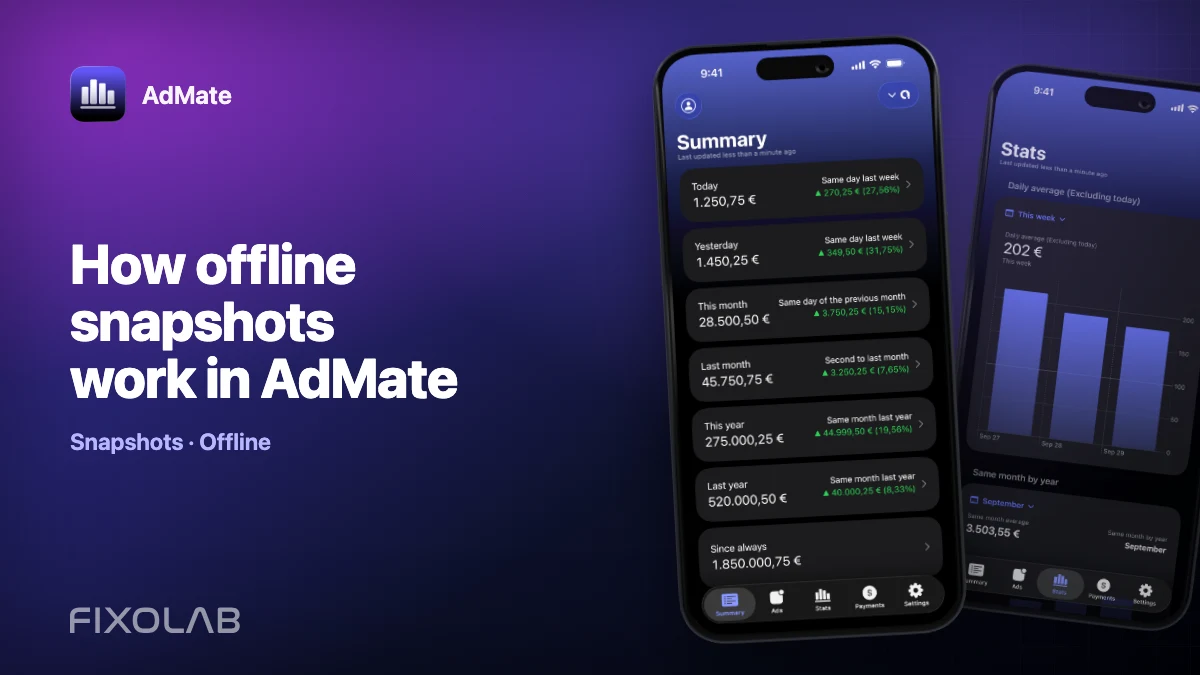
| FixoLab
How offline snapshots work in AdMate
Understand what AdMate stores for offline summaries, why snapshots can differ from a fresh provider report and how widgets and Apple Watch use shared cached data.