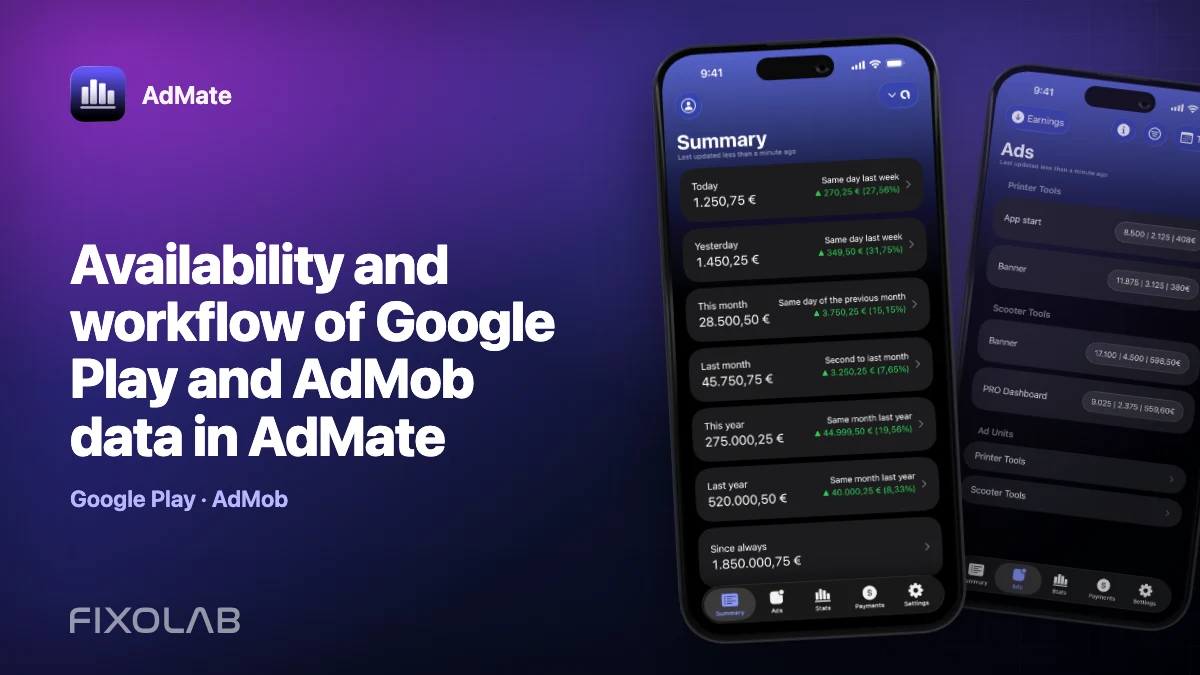
Availability and workflow of Google Play and AdMob data in AdMate
AdMob and Google Play can describe the same Android app while reporting completely different activity. AdMob covers advertising. Google Play covers the store, products, audience, reviews and compatible financial or performance reports. AdMate keeps those sources separate so that one app can be reviewed from both angles without pretending that every number is additive.
Google Play account management is still gated in current AdMate builds and may only appear when the corresponding feature or developer access is enabled. This article describes the implemented workflow without promising that the setup is visible to every public build today.
All your revenue in one dashboard
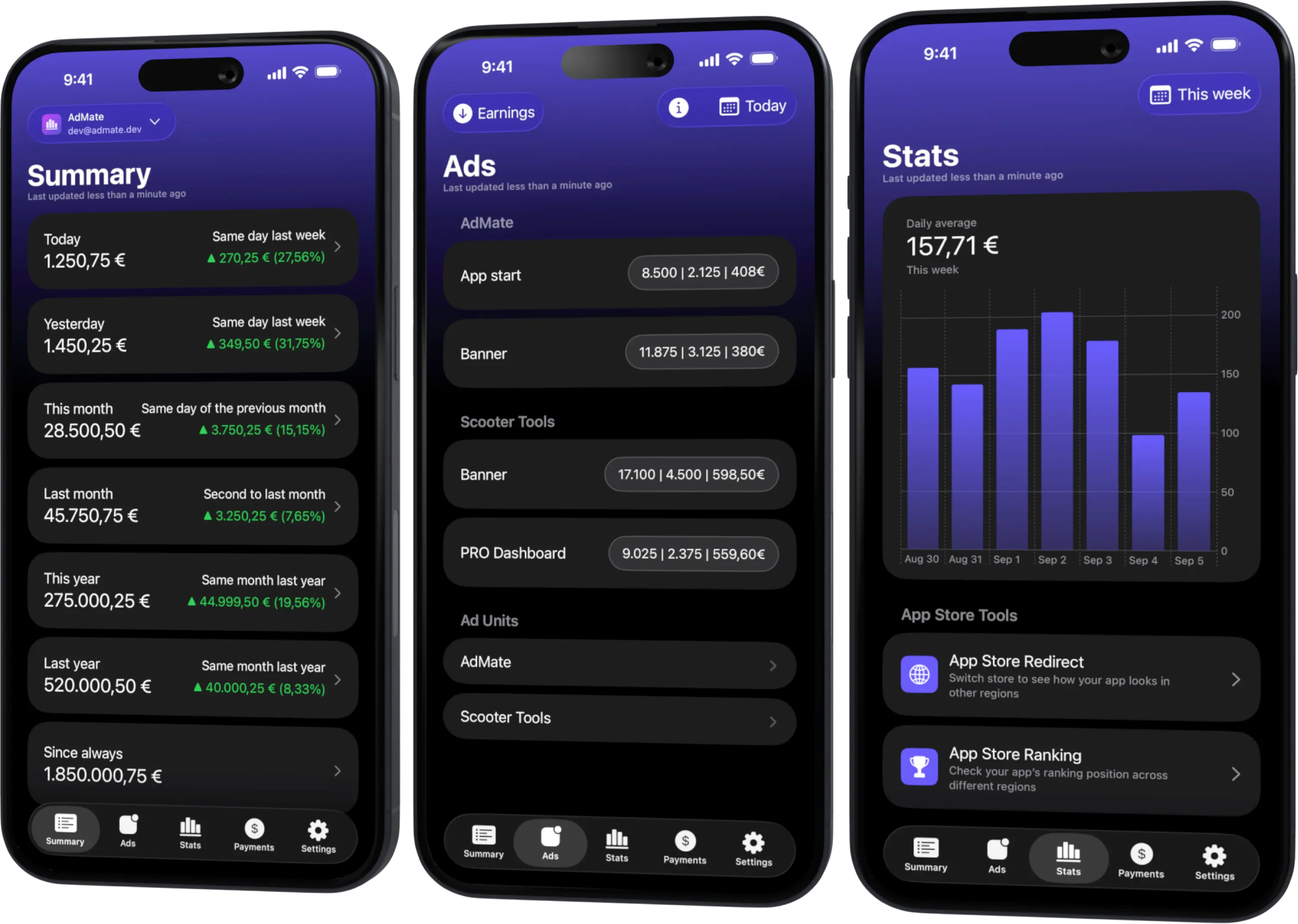
Track AdMob, AdSense, RevenueCat and App Store Connect across multiple accounts with filters by app, platform and country
Monitor revenue, clicks, eCPM, subscriptions, installs and payments on iPhone, iPad, Mac and Apple Watch
Two Google services, two permissions
An email address with AdMob access does not automatically have Google Play Console access. The services use different roles and APIs:
- AdMob needs access to the publisher, apps, ad units and advertising reports;
- Google Play needs access to the developer account and the application or reporting resources requested by the app.
Even if the same Google identity owns both, authorize and verify each source independently. In a company, advertising and store operations may be assigned to different teams.
What the Google Play integration can organize
The implemented Google Play reporting models cover several categories where the provider exposes data, including application summaries, revenue types, country breakdowns, audience and install data, reviews, store performance, products, subscriptions and release tracks.
Availability depends on the account, API, report generation and permissions. A category existing in the interface does not guarantee that every Google Play account returns it. Empty data should be treated as a report result or permission question, not filled with an invented estimate.
Connect each source when available
For AdMob:
- add the Google identity from the AdMob section;
- verify the intended publisher;
- load a known reporting period;
- confirm apps and ad units.
For Google Play, when the feature is enabled:
- open the Google Play section in account management;
- complete the dedicated Google authorization;
- confirm the developer account and accessible apps;
- open a known app and test one category at a time;
- verify that the report period and currency match the official console.
Do not infer Google Play access from the fact that AdMob already works. If the Play section is not visible in the current build, that is an availability gate rather than a reason to change unrelated Google credentials.
Avoid double-counting
Advertising earnings and store purchase revenue are normally independent sources and may be combined when the scope is clear. But the same transaction can appear in multiple subscription or store analytics products.
Before adding values, label them:
- AdMob estimated advertising earnings;
- Google Play customer sales or developer proceeds;
- RevenueCat revenue from Google Play transactions;
- finalized Google payment or financial report.
RevenueCat and Google Play may both describe the same purchase. AdMob is different advertising revenue, but it can also be imported into other analytics products. Keep source lines separate until you know whether the data overlaps.
A practical Android review
Use a simple sequence:
- start with the Google Play app identity and selected period;
- review installs, audience or store changes;
- inspect products, subscriptions or revenue where available;
- move to AdMob for impressions, eCPM and estimated ad earnings;
- compare movement, not just absolute totals;
- open the official provider console when a report is missing or materially different.
For example, a rise in installs can precede more ad impressions, but it does not prove that every new user saw an ad or bought a product. Use the dashboards to form a question, then verify it with the underlying provider reports.
Common troubleshooting paths
AdMob works but Google Play does not
Check Play Console membership, app-level permissions and whether the Google Play feature is enabled in the current AdMate build.
The Google Play account has no apps
Confirm the selected Google identity and the developer account in the official console. An invited user may only have access to selected apps.
Revenue is missing while reviews load
Different report families can require different permissions or availability. Test the financial report in the provider console and verify currency and period.
The same app appears under different names
Use package name or provider identifier to match it. Display names can change and can be localized.
Frequently asked questions
Is Google Play setup available to every AdMate user?
Not necessarily. Current code keeps Google Play and Analytics account management behind a feature or developer-access gate. Check the current build rather than assuming the section is public.
Can one Google login cover both services?
It can, but the identity still needs the relevant permissions in each service and each source is authorized and checked separately.
Should I add AdMob earnings to RevenueCat revenue?
Only after confirming that ad revenue is not already imported into the RevenueCat view and that both values cover the same period and currency.
Which source is final for a Google Play payment?
Use Google’s finalized financial and payment records. Operational dashboards are not bank statements.
All your revenue in one dashboard
Track AdMob, AdSense, RevenueCat and App Store Connect across multiple accounts with filters by app, platform and country
Monitor revenue, clicks, eCPM, subscriptions, installs and payments on iPhone, iPad, Mac and Apple Watch