How to connect App Store Connect to AdMate
App Store Connect contains several different data families: app metadata, reviews, analytics, sales, estimated proceeds and final financial reports. AdMate can bring those surfaces into the same app used for AdMob and RevenueCat, but the connection must have the right identifiers and permissions.
The setup uses an App Store Connect API key. Treat the private key like a password: import it only into the credential screen and never attach it to a support request.
All your revenue in one dashboard
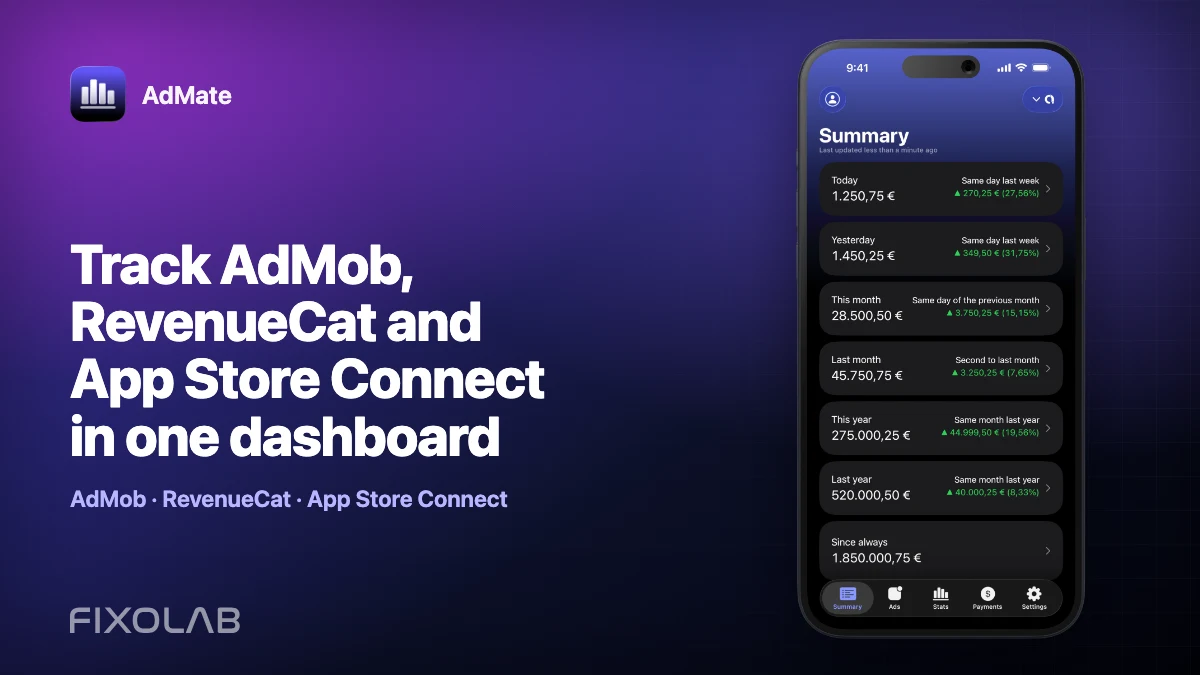
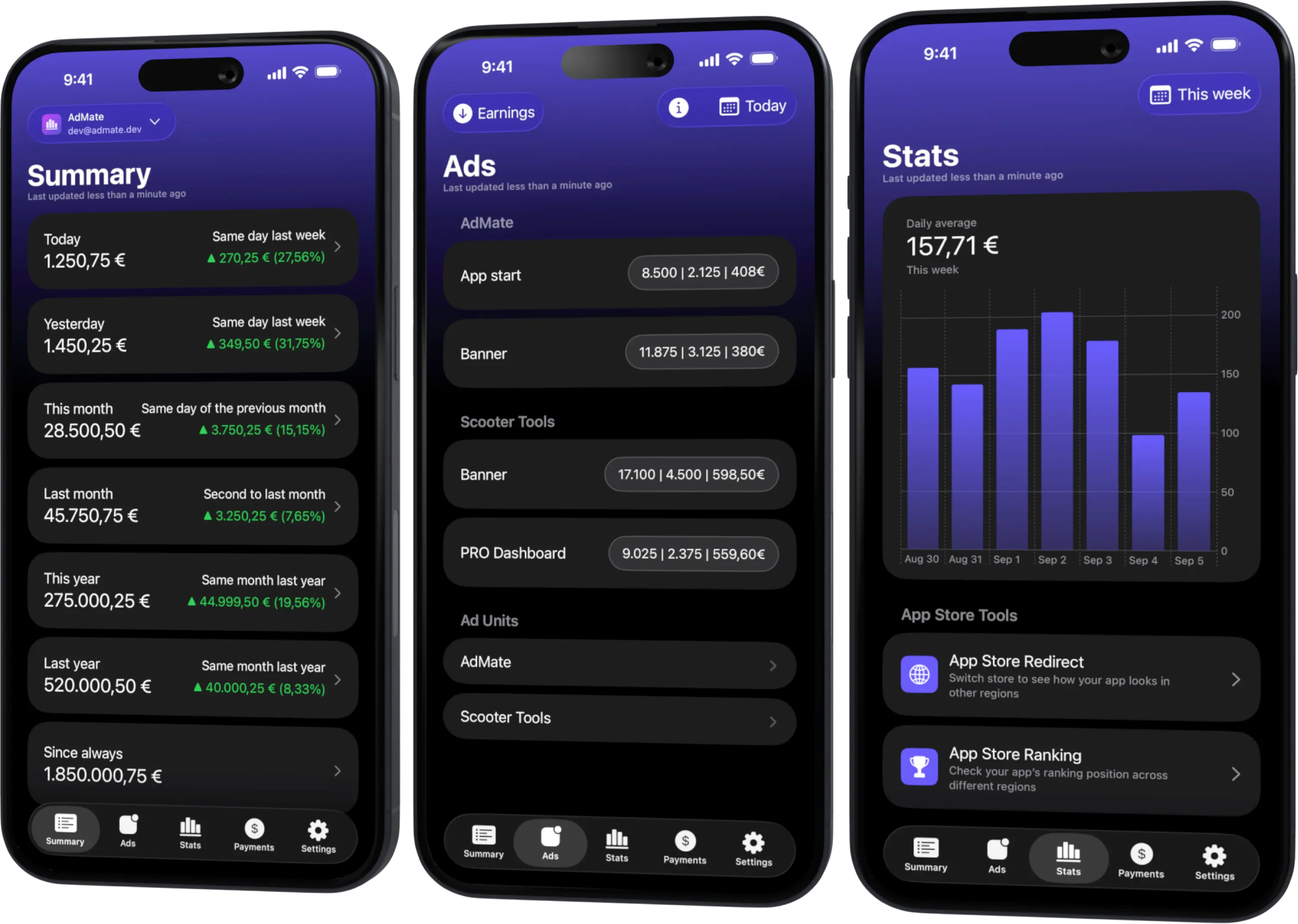
Track AdMob, AdSense, RevenueCat and App Store Connect across multiple accounts with filters by app, platform and country
Monitor revenue, clicks, eCPM, subscriptions, installs and payments on iPhone, iPad, Mac and Apple Watch
What you need from App Store Connect
Prepare the values shown by Apple’s Users and Access area for the API key:
- Key ID, identifying the API key;
- Issuer ID, identifying the App Store Connect API issuer;
- the private .p8 key contents or file;
- a clear account alias for AdMate;
- the vendor number when the requested sales or financial report requires it.
The role assigned to the key controls what Apple returns. A key that can list apps may still lack access to sales or financial data. Use the narrowest suitable role, but make sure it covers the reports you actually intend to read.
Apple normally allows the private key file to be downloaded only once. Store the original securely outside the repository and outside screenshots. If the file is lost or exposed, revoke the key and create a replacement rather than asking another person to send it through chat.
Add the account in AdMate
- Open Settings and account management.
- Choose to add an App Store Connect account.
- Enter a recognizable display name.
- Add the Key ID and Issuer ID exactly as Apple provides them.
- Import or paste the private key through the credential screen.
- Add the vendor number when financial or sales reports need it.
- Save the account and allow AdMate to validate the credentials.
- Open the account summary and confirm the expected apps.
Avoid manually editing the header or footer of the .p8 key. Extra text, missing line breaks or a key from another issuer will prevent token creation.
Verify each data surface separately
A single green summary does not prove that every App Store Connect endpoint is available. Check the surfaces you plan to use:
Apps and metadata
Confirm that the expected apps and icons appear. A missing app can indicate that the key belongs to another provider organization or that its role is restricted.
Reviews
Open the reviews view and check a known app. Reviews are store and territory data; a valid empty state may simply mean there are no matching reviews.
Analytics
Choose a complete period and allow for Apple’s report availability. Some analytics reports are not instant and may have their own granularity and delay.
Sales and proceeds
Label customer sales and developer proceeds separately. They are not the same value, and neither should be confused with a bank payment.
Financial reports
Financial reports use Apple’s closed reporting periods and may require the correct vendor number and role. Use them for reconciliation rather than expecting the current day to appear.
Troubleshoot the connection
Invalid key or signature
Recheck Key ID, Issuer ID and private key as one set. A valid key paired with the wrong issuer still fails. If exposure is possible, revoke it before further testing.
Apps load but financial reports fail
Check the API-key role, vendor number and requested financial period. Metadata access alone does not guarantee finance access.
Analytics shows no data
Use a supported historical range, verify that the report has become available and confirm that the selected app generated the requested metric.
The wrong organization’s apps appear
Remove the account and add the key from the correct provider. Do not merge totals from two organizations merely because their apps use the same bundle naming convention.
Multiple App Store Connect accounts
AdMate supports more than one account. Use aliases that identify the organization, not the person who created the key. When a key is rotated, replace it in the correct account and test apps, analytics and finance separately.
For comparisons with subscription analytics, read why App Store Connect and RevenueCat totals differ.
Frequently asked questions
Does AdMate need my Apple ID password?
No. The connection uses an App Store Connect API key, issuer and related identifiers. Never enter or share an Apple ID password for this setup.
Why do apps load while proceeds do not?
The key may have enough permission for app metadata but not for sales or finance, or the vendor number and report period may be missing.
Can I reuse one key for several AdMate devices?
Technically the same provider credential may work, but every additional copy increases exposure. Follow your organization’s key-management policy and revoke keys from devices that should no longer have access.
Are App Store Connect estimates final accounting values?
No. Use closed financial reports and actual payments for accounting.
All your revenue in one dashboard
Track AdMob, AdSense, RevenueCat and App Store Connect across multiple accounts with filters by app, platform and country
Monitor revenue, clicks, eCPM, subscriptions, installs and payments on iPhone, iPad, Mac and Apple Watch