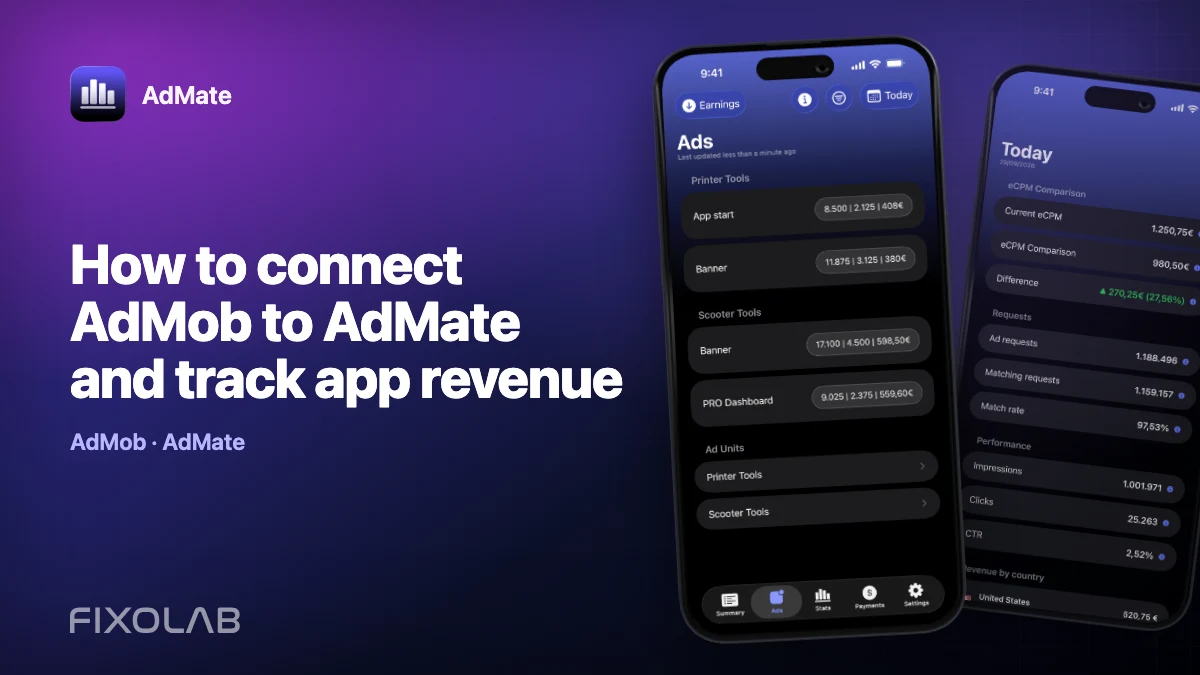
How to connect AdMob to AdMate and track app revenue
Connecting AdMob is the quickest way to turn AdMate into a useful daily advertising dashboard. The connection uses Google sign-in and the permissions granted to the selected Google account. AdMate then requests the reports available to that account; it does not ask you to copy an AdMob password or route your revenue through an AdMate server.
This guide covers the first connection, the checks that prevent most empty dashboards and a safe way to add more than one publisher account.
All your revenue in one dashboard
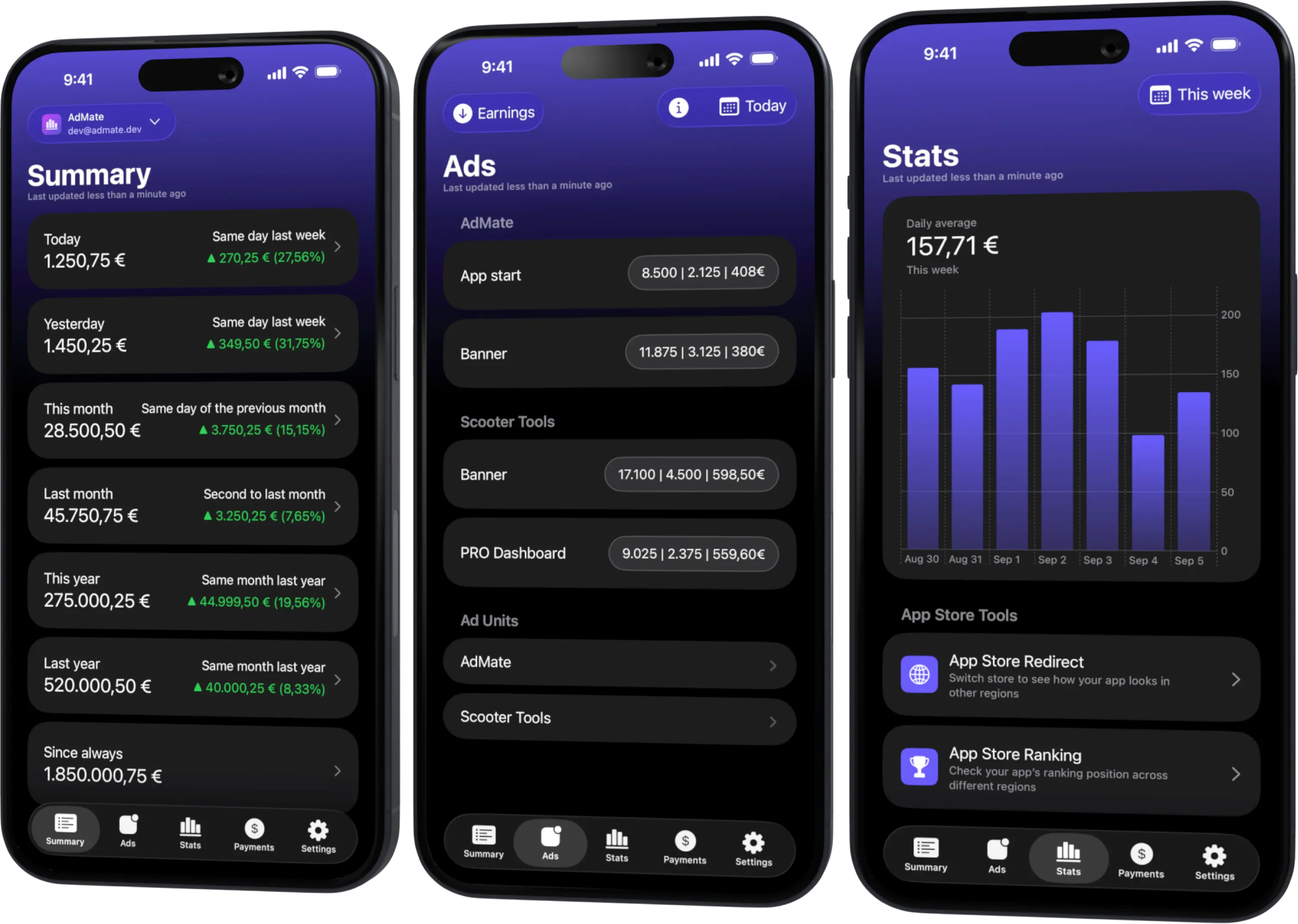
Track AdMob, AdSense, RevenueCat and App Store Connect across multiple accounts with filters by app, platform and country
Monitor revenue, clicks, eCPM, subscriptions, installs and payments on iPhone, iPad, Mac and Apple Watch
Before you connect
Confirm three things before opening the account screen:
- the Google account can open the intended AdMob publisher account in Google’s own dashboard;
- the account has access to the apps and ad units you expect to see;
- the device has a working internet connection and is not blocking Google sign-in.
Access is determined by Google. Being able to sign in to Gmail does not automatically mean that the same identity has AdMob reporting permissions. If an agency, client or second company invited you to a publisher account, accept that invitation in the official AdMob dashboard first.
Connect the first AdMob account
- Open Settings in AdMate.
- Enter the account-management screen.
- Find the AdMob section and choose the option to add an account.
- Complete Google sign-in with the identity that owns or can view the publisher account.
- Review the requested permissions and approve them only if the selected identity and scope are correct.
- Return to AdMate and open the new account entry.
- Refresh the summary and confirm that apps, ad units and reporting totals load.
Google may show an account chooser even when another Google app is already signed in. Read the email address carefully. Selecting the wrong identity is the most common reason for a successful login followed by an empty report.
What AdMate can show after connection
The exact fields depend on the reports returned by AdMob, but the advertising workflow normally includes:
- estimated earnings for the selected period;
- impressions, clicks and ad requests;
- eCPM and other performance ratios;
- application and ad-unit breakdowns;
- comparisons between reporting periods;
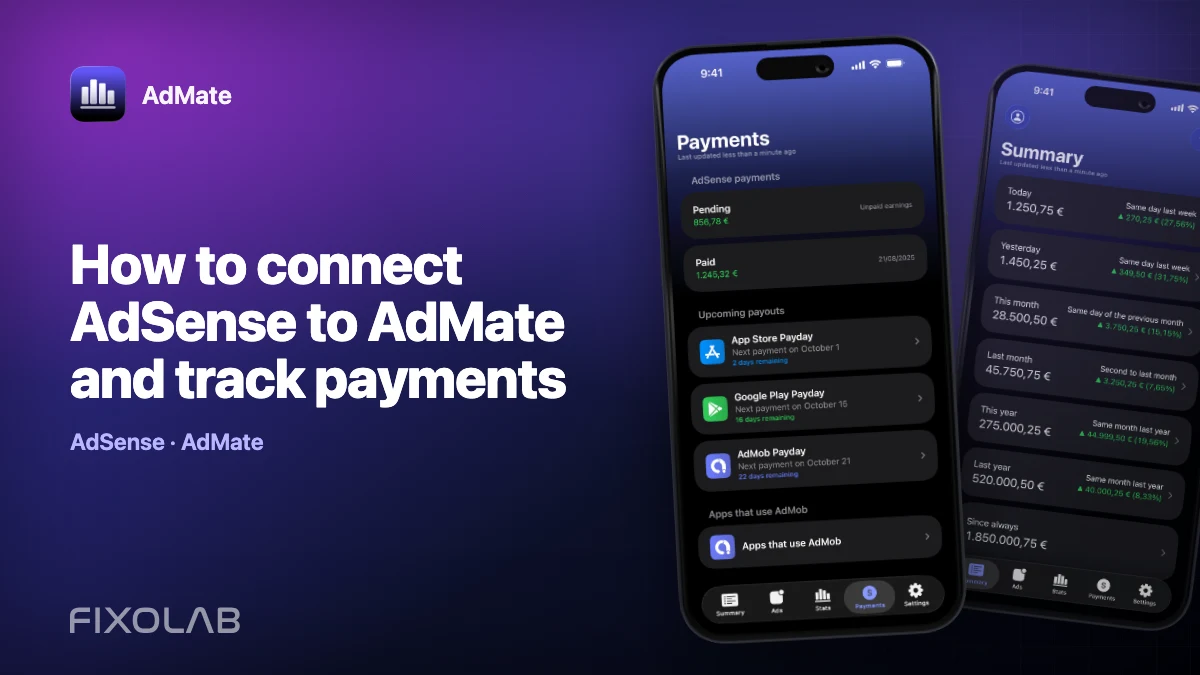
- AdSense payment information available to the connected Google account.
These values are operational reporting data. Estimated earnings can change before Google finalizes them, so do not use a live daily card as a substitute for a closed AdSense payment or an accounting statement.
Add more than one publisher account
AdMate supports multiple accounts. Add each publisher identity separately from the same AdMob section, then give yourself a simple routine:
- verify the active account name before reading a total;
- compare the same date range in every account;
- open an individual app or ad unit when a portfolio total changes;
- keep client and personal publisher accounts clearly separated.
Do not add two Google identities that expose the same publisher and then add both headline totals together. They may be two paths to the same underlying revenue.
If the dashboard is empty
Work from account access toward reporting rather than repeatedly removing and adding the login.
Confirm the official dashboard first
Open AdMob with the same Google identity. If the expected publisher, application or ad unit is missing there, AdMate cannot make it appear. Ask the account owner to correct the Google-side access.
Check the selected period
A newly created app, an app with no recent traffic or a date range before the first impression can legitimately return zero. Try a complete historical period in which you know the app served ads.
Refresh after changing access
When an administrator changes your permissions, refresh or reconnect so that the current authorization and accessible publisher list are requested again.
Distinguish zero from an error
A valid report containing zero impressions is different from an authorization or network failure. Preserve the exact provider error when contacting support, but remove email addresses, publisher identifiers and tokens from screenshots.
Security and privacy
Use the provider’s sign-in flow and never send credentials through email, chat or a support ticket. AdMate queries Google services from the app using the account authorization you provide. Keep the device protected with its normal passcode and remove an account from AdMate when the device should no longer have access.
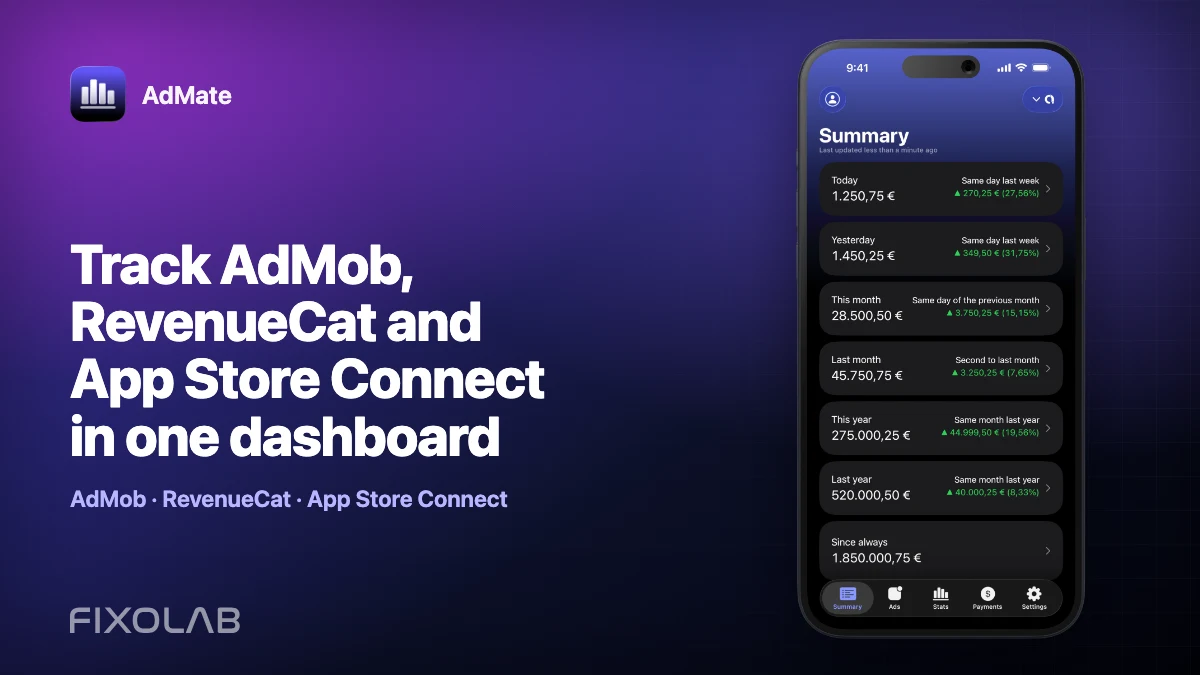
For a portfolio-wide view after setup, continue with tracking AdMob, RevenueCat and App Store Connect in one dashboard.
Frequently asked questions
Do I enter my Google password in AdMate?
No. Authentication is completed through Google sign-in. Do not paste a Google password into any custom field or support message.
Why can I sign in but see no apps?
The selected identity may not have access to the intended AdMob publisher, or the chosen reporting period may contain no data. Verify both in the official dashboard.
Can I connect several AdMob accounts?
Yes. Add them separately and verify the active account before comparing or combining values.
Are today’s earnings final?
No. AdMob describes them as estimated earnings and may adjust them before finalization.
All your revenue in one dashboard
Track AdMob, AdSense, RevenueCat and App Store Connect across multiple accounts with filters by app, platform and country
Monitor revenue, clicks, eCPM, subscriptions, installs and payments on iPhone, iPad, Mac and Apple Watch